|
 https://arxiv.org/abs/1612.08242 https://arxiv.org/abs/1612.08242 |
|---|
A yolo windows version (for object detection)
Contributtors: https://github.com/pjreddie/darknet/graphs/contributors
This repository is forked from Linux-version: https://github.com/pjreddie/darknet
More details: http://pjreddie.com/darknet/yolo/
yolo.cfg (256 MB COCO-model) - require 4 GB GPU-RAM: http://pjreddie.com/media/files/yolo.weightsyolo-voc.cfg (256 MB VOC-model) - require 4 GB GPU-RAM: http://pjreddie.com/media/files/yolo-voc.weightstiny-yolo.cfg (60 MB COCO-model) - require 1 GB GPU-RAM: http://pjreddie.com/media/files/tiny-yolo.weightstiny-yolo-voc.cfg (60 MB VOC-model) - require 1 GB GPU-RAM: http://pjreddie.com/media/files/tiny-yolo-voc.weightsPut it near compiled: darknet.exe
You can get cfg-files by path: darknet/cfg/
Others: https://www.youtube.com/channel/UC7ev3hNVkx4DzZ3LO19oebg
build\darknet\x64\:darknet_voc.cmd - initialization with 256 MB VOC-model yolo-voc.weights & yolo-voc.cfg and waiting for entering the name of the image filedarknet_demo_voc.cmd - initialization with 256 MB VOC-model yolo-voc.weights & yolo-voc.cfg and play your video file which you must rename to: test.mp4, and store result to: test_dnn_out.avidarknet_net_cam_voc.cmd - initialization with 256 MB VOC-model, play video from network video-camera mjpeg-stream (also from you phone) and store result to: test_dnn_out.avidarknet_web_cam_voc.cmd - initialization with 256 MB VOC-model, play video from Web-Camera number #0 and store result to: test_dnn_out.avidarknet.exe detector test data/coco.data yolo.cfg yolo.weights -i 0 -thresh 0.2darknet.exe detect yolo.cfg yolo.weights -i 0 -thresh 0.2darknet.exe detector test data/voc.data yolo-voc.cfg yolo-voc.weights -i 0darknet.exe detector demo data/coco.data yolo.cfg yolo.weights test.mp4 -i 0darknet.exe detector demo data/voc.data yolo-voc.cfg yolo-voc.weights test.mp4 -i 0darknet.exe yolo demo yolo-voc.cfg yolo-voc.weights test.mp4 -i 0darknet.exe detector demo data/voc.data tiny-yolo-voc.cfg tiny-yolo-voc.weights test.mp4 -i 0darknet.exe detector demo data/coco.data yolo.cfg yolo.weights http://192.168.0.80:8080/video?dummy=param.mjpg -i 0darknet.exe detector demo data/voc.data yolo-voc.cfg yolo-voc.weights http://192.168.0.80:8080/video?dummy=param.mjpg -i 0darknet.exe detector demo data/voc.data yolo-voc.cfg yolo-voc.weights -c 0* Smart WebCam - preferably: https://play.google.com/store/apps/details?id=com.acontech.android.SmartWebCam2
* IP Webcam: https://play.google.com/store/apps/details?id=com.pas.webcam
darknet.exe detector demo data/coco.data yolo.cfg yolo.weights http://192.168.0.80:8080/video?dummy=param.mjpg -i 0darknet.exe detector demo data/voc.data yolo-voc.cfg yolo-voc.weights http://192.168.0.80:8080/video?dummy=param.mjpg -i 0If you have MSVS 2015, CUDA 8.0 and OpenCV 2.4.9 (with paths: C:\opencv_2.4.9\opencv\build\include & C:\opencv_2.4.9\opencv\build\x64\vc12\lib or vc14\lib), then start MSVS, open build\darknet\darknet.sln, set x64 and Release, and do the: Build -> Build darknet
If you have other version of CUDA (not 8.0) then open build\darknet\darknet.vcxproj by using Notepad, find 2 places with "CUDA 8.0" and change it to your CUDA-version, then do step 1
If you have other version of OpenCV 2.4.x (not 2.4.9) then you should change pathes after \darknet.sln is opened
3.1 (right click on project) -> properties -> C/C++ -> General -> Additional Include Directories
3.2 (right click on project) -> properties -> Linker -> General -> Additional Library Directories
3.3 Open file: \src\yolo.c and change 3 lines to your OpenCV-version - 249 (for 2.4.9), 2413 (for 2.4.13), ... :
* `#pragma comment(lib, "opencv_core249.lib")`
* `#pragma comment(lib, "opencv_imgproc249.lib")`
* `#pragma comment(lib, "opencv_highgui249.lib")`
If you have other version of OpenCV 3.x (not 2.4.x) then you should change many places in code by yourself.
If you want to build with CUDNN to speed up then:
cudnn with path to CUDNN: https://hsto.org/files/a49/3dc/fc4/a493dcfc4bd34a1295fd15e0e2e01f26.jpg\darknet.sln -> (right click on project) -> properties -> C/C++ -> Preprocessor -> Preprocessor Definitions, and add at the beginning of line: CUDNN;Also, you can to create your own darknet.sln & darknet.vcxproj, this example for CUDA 8.0 and OpenCV 2.4.9
Then add to your created project:
- (right click on project) -> properties -> C/C++ -> General -> Additional Include Directories, put here:
C:\opencv_2.4.9\opencv\build\include;..\..\3rdparty\include;%(AdditionalIncludeDirectories);$(CudaToolkitIncludeDir);$(cudnn)\include
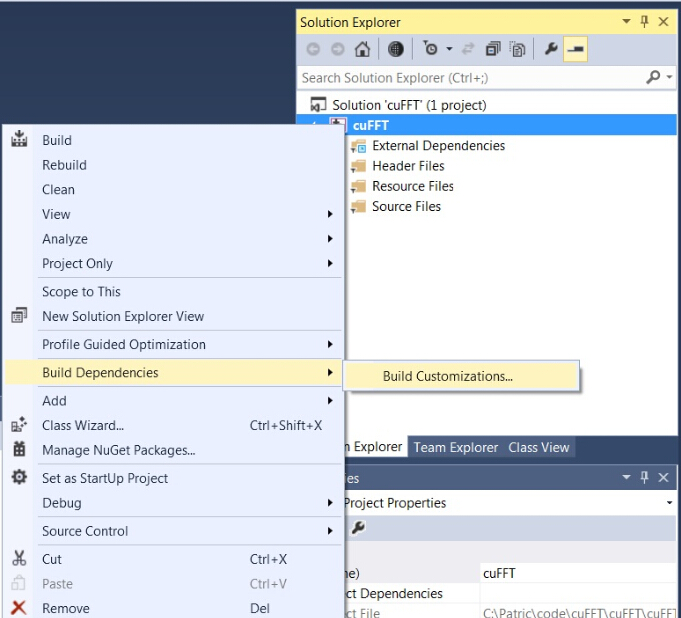
- (right click on project) -> Build dependecies -> Build Customizations -> set check on CUDA 8.0 or what version you have - for example as here: http://devblogs.nvidia.com/parallelforall/wp-content/uploads/2015/01/VS2013-R-5.jpg
- add to project all .c & .cu files from \src
- (right click on project) -> properties -> Linker -> General -> Additional Library Directories, put here:
C:\opencv_2.4.9\opencv\build\x64\vc12\lib;$(CUDA_PATH)lib\$(PlatformName);$(cudnn)\lib\x64;%(AdditionalLibraryDirectories)
- (right click on project) -> properties -> Linker -> Input -> Additional dependecies, put here:
..\..\3rdparty\lib\x64\pthreadVC2.lib;cublas.lib;curand.lib;cudart.lib;cudnn.lib;%(AdditionalDependencies)
- (right click on project) -> properties -> C/C++ -> Preprocessor -> Preprocessor Definitions
open file: \src\yolo.c and change 3 lines to your OpenCV-version - 249 (for 2.4.9), 2413 (for 2.4.13), ... :
#pragma comment(lib, "opencv_core249.lib")#pragma comment(lib, "opencv_imgproc249.lib")#pragma comment(lib, "opencv_highgui249.lib")OPENCV;_TIMESPEC_DEFINED;_CRT_SECURE_NO_WARNINGS;GPU;WIN32;NDEBUG;_CONSOLE;_LIB;%(PreprocessorDefinitions)
- compile to .exe (X64 & Release) and put .dll-s near with .exe:
pthreadVC2.dll, pthreadGC2.dll from \3rdparty\dll\x64
cusolver64_80.dll, curand64_80.dll, cudart64_80.dll, cublas64_80.dll - 80 for CUDA 8.0 or your version, from C:\Program Files\NVIDIA GPU Computing Toolkit\CUDA\v8.0\bin
Download pre-trained weights for the convolutional layers (76 MB): http://pjreddie.com/media/files/darknet19_448.conv.23 and put to the directory build\darknet\x64
Download The Pascal VOC Data and unpack it to directory build\darknet\x64\data\voc will be created dir build\darknet\x64\data\voc\VOCdevkit\:
2.1 Download file voc_label.py to dir build\darknet\x64\data\voc: http://pjreddie.com/media/files/voc_label.py
Download and install Python for Windows: https://www.python.org/ftp/python/3.5.2/python-3.5.2-amd64.exe
Run command: python build\darknet\x64\data\voc\voc_label.py (to generate files: 2007_test.txt, 2007_train.txt, 2007_val.txt, 2012_train.txt, 2012_val.txt)
Run command: type 2007_train.txt 2007_val.txt 2012_*.txt > train.txt
Start training by using train_voc.cmd or by using the command line: darknet.exe detector train data/voc.data yolo-voc.cfg darknet19_448.conv.23
If required change pathes in the file build\darknet\x64\data\voc.data
More information about training by the link: http://pjreddie.com/darknet/yolo/#train-voc
Train it first on 1 GPU for like 1000 iterations: darknet.exe detector train data/voc.data yolo-voc.cfg darknet19_448.conv.23
Then stop and by using partially-trained model /backup/yolo-voc_1000.weights run training with multigpu (up to 4 GPUs): darknet.exe detector train data/voc.data yolo-voc.cfg yolo-voc_1000.weights -gpus 0,1,2,3
https://groups.google.com/d/msg/darknet/NbJqonJBTSY/Te5PfIpuCAAJ
yolo-obj.cfg with the same content as in yolo-voc.cfg (or copy yolo-voc.cfg to yolo-obj.cfg) and:classes=20 to your number of objectsfilters=125 to filters=(classes + 5)*5 (generally this depends on the num and coords, i.e. equal to (classes + coords + 1)*num)For example, for 2 objects, your file yolo-obj.cfg should differ from yolo-voc.cfg in such lines:
```
[convolutional]
filters=35
[region]
classes=2
```
Create file obj.names in the directory build\darknet\x64\data\, with objects names - each in new line
Create file obj.data in the directory build\darknet\x64\data\, containing (where classes = number of objects):
classes= 2 train = train.txt valid = test.txt names = obj.names backup = backup/
Put image-files (.jpg) of your objects in the directory build\darknet\x64\data\obj\
Create .txt-file for each .jpg-image-file - in the same directory and with the same name, but with .txt-extension, and put to file: object number and object coordinates on this image, for each object in new line: <object-class> <x> <y> <width> <height>
Where:
* <object-class> - integer number of object from 0 to (classes-1)
* <x> <y> <width> <height> - float values relative to width and height of image, it can be equal from 0.0 to 1.0
* for example: <x> = <absolute_x> / <image_width> or <height> = <absolute_height> / <image_height>
* atention: <x> <y> - are center of rectangle (are not top-left corner)
For example for img1.jpg you should create img1.txt containing:
1 0.716797 0.395833 0.216406 0.147222 0 0.687109 0.379167 0.255469 0.158333 1 0.420312 0.395833 0.140625 0.166667
train.txt in directory build\darknet\x64\data\, with filenames of your images, each filename in new line, with path relative to darknet.exe, for example containing: data/obj/img1.jpg data/obj/img2.jpg data/obj/img3.jpg
Download pre-trained weights for the convolutional layers (76 MB): http://pjreddie.com/media/files/darknet19_448.conv.23 and put to the directory build\darknet\x64
Start training by using the command line: darknet.exe detector train data/obj.data yolo-obj.cfg darknet19_448.conv.23
After training is complete - get result yolo-obj_final.weights from path build\darknet\x64\backup\
After each 1000 iterations you can stop and later start training from this point. For example, after 2000 iterations you can stop training, and later just copy yolo-obj_2000.weights from build\darknet\x64\backup\ to build\darknet\x64\ and start training using: darknet.exe detector train data/obj.data yolo-obj.cfg yolo-obj_2000.weights
Also you can get result earlier than all 45000 iterations, for example, usually sufficient 2000 iterations for each class(object). I.e. for 6 classes to avoid overfitting - you can stop training after 12000 iterations and use yolo-obj_12000.weights to detection.
Example of custom object detection: darknet.exe detector test data/obj.data yolo-obj.cfg yolo-obj_3000.weights
 |
 |
|---|
Here you can find repository with GUI-software for marking bounded boxes of objects and generating annotation files for Yolo v2: https://github.com/AlexeyAB/Yolo_mark
With example of: train.txt, obj.names, obj.data, yolo-obj.cfg, air1-6.txt, bird1-4.txt for 2 classes of objects (air, bird) and train_obj.cmd with example how to train this image-set with Yolo v2