|
 mAP (AP50) https://pjreddie.com/media/files/papers/YOLOv3.pdf mAP (AP50) https://pjreddie.com/media/files/papers/YOLOv3.pdf |
|---|
A Yolo cross-platform Windows and Linux version (for object detection). Contributtors: https://github.com/pjreddie/darknet/graphs/contributors
This repository is forked from Linux-version: https://github.com/pjreddie/darknet
More details: http://pjreddie.com/darknet/yolo/
This repository supports:
-out_filename res.aviyolov3.cfg (236 MB COCO Yolo v3) - require 4 GB GPU-RAM: https://pjreddie.com/media/files/yolov3.weightsyolov2.cfg (194 MB COCO Yolo v2) - require 4 GB GPU-RAM: https://pjreddie.com/media/files/yolov2.weightsyolo-voc.cfg (194 MB VOC Yolo v2) - require 4 GB GPU-RAM: http://pjreddie.com/media/files/yolo-voc.weightsyolov2-tiny.cfg (43 MB COCO Yolo v2) - require 1 GB GPU-RAM: https://pjreddie.com/media/files/yolov2-tiny.weightsyolov2-tiny-voc.cfg (60 MB VOC Yolo v2) - require 1 GB GPU-RAM: http://pjreddie.com/media/files/yolov2-tiny-voc.weightsyolo9000.cfg (186 MB Yolo9000-model) - require 4 GB GPU-RAM: http://pjreddie.com/media/files/yolo9000.weightsPut it near compiled: darknet.exe
You can get cfg-files by path: darknet/cfg/
Others: https://www.youtube.com/channel/UC7ev3hNVkx4DzZ3LO19oebg
build\darknet\x64\:darknet_yolo_v3.cmd - initialization with 236 MB Yolo v3 COCO-model yolov3.weights & yolov3.cfg and show detection on the image: dog.jpg
darknet_voc.cmd - initialization with 194 MB VOC-model yolo-voc.weights & yolo-voc.cfg and waiting for entering the name of the image file
darknet_demo_voc.cmd - initialization with 194 MB VOC-model yolo-voc.weights & yolo-voc.cfg and play your video file which you must rename to: test.mp4darknet_demo_store.cmd - initialization with 194 MB VOC-model yolo-voc.weights & yolo-voc.cfg and play your video file which you must rename to: test.mp4, and store result to: res.avidarknet_net_cam_voc.cmd - initialization with 194 MB VOC-model, play video from network video-camera mjpeg-stream (also from you phone)darknet_web_cam_voc.cmd - initialization with 194 MB VOC-model, play video from Web-Camera number #0darknet_coco_9000.cmd - initialization with 186 MB Yolo9000 COCO-model, and show detection on the image: dog.jpgdarknet_coco_9000_demo.cmd - initialization with 186 MB Yolo9000 COCO-model, and show detection on the video (if it is present): street4k.mp4, and store result to: res.aviOn Linux use ./darknet instead of darknet.exe, like this:./darknet detector test ./cfg/coco.data ./cfg/yolov3.cfg ./yolov3.weights
darknet.exe detector test data/coco.data yolo.cfg yolo.weights -i 0 -thresh 0.2darknet.exe detect yolo.cfg yolo.weights -i 0 -thresh 0.2darknet.exe detector test data/voc.data yolo-voc.cfg yolo-voc.weights -i 0darknet.exe detector demo data/coco.data yolo.cfg yolo.weights test.mp4 -i 0darknet.exe detector demo data/voc.data yolo-voc.cfg yolo-voc.weights test.mp4 -i 0darknet.exe detector demo data/coco.data yolo.cfg yolo.weights test.mp4 -i 0 -out_filename res.avidarknet.exe detector demo data/voc.data yolo-voc.cfg yolo-voc.weights test.mp4 -i 0 -out_filename res.avidarknet.exe yolo demo yolo-voc.cfg yolo-voc.weights test.mp4 -i 0darknet.exe detector demo data/voc.data tiny-yolo-voc.cfg tiny-yolo-voc.weights test.mp4 -i 0darknet.exe detector demo data/coco.data yolo.cfg yolo.weights http://192.168.0.80:8080/video?dummy=param.mjpg -i 0darknet.exe detector demo data/voc.data yolo-voc.cfg yolo-voc.weights http://192.168.0.80:8080/video?dummy=param.mjpg -i 0darknet.exe detector demo data/voc.data yolo-voc.cfg yolo-voc.weights -c 0darknet.exe detector test cfg/combine9k.data yolo9000.cfg yolo9000.weightsdarknet.exe detector demo cfg/combine9k.data yolo9000.cfg yolo9000.weights test.mp4data/train.txt and save results of detection to result.txt use:darknet.exe detector test data/voc.data yolo-voc.cfg yolo-voc.weights -dont_show < data/train.txt > result.txt* Smart WebCam - preferably: https://play.google.com/store/apps/details?id=com.acontech.android.SmartWebCam2
* IP Webcam: https://play.google.com/store/apps/details?id=com.pas.webcam
darknet.exe detector demo data/coco.data yolo.cfg yolo.weights http://192.168.0.80:8080/video?dummy=param.mjpg -i 0darknet.exe detector demo data/voc.data yolo-voc.cfg yolo-voc.weights http://192.168.0.80:8080/video?dummy=param.mjpg -i 0Just do make in the darknet directory.
Before make, you can set such options in the Makefile: link
* GPU=1 to build with CUDA to accelerate by using GPU (CUDA should be in /usr/local/cuda)
* CUDNN=1 to build with cuDNN v5-v7 to accelerate training by using GPU (cuDNN should be in /usr/local/cudnn)
* OPENCV=1 to build with OpenCV 3.x/2.4.x - allows to detect on video files and video streams from network cameras or web-cams
* DEBUG=1 to bould debug version of Yolo
* OPENMP=1 to build with OpenMP support to accelerate Yolo by using multi-core CPU
* LIBSO=1 to build a library darknet.so and binary runable file uselib that uses this library. Or you can try to run so LD_LIBRARY_PATH=./:$LD_LIBRARY_PATH ./uselib test.mp4 How to use this SO-library from your own code - you can look at C++ example: https://github.com/AlexeyAB/darknet/blob/master/src/yolo_console_dll.cpp
If you have MSVS 2015, CUDA 9.1, cuDNN 7.0 and OpenCV 3.x (with paths: C:\opencv_3.0\opencv\build\include & C:\opencv_3.0\opencv\build\x64\vc14\lib), then start MSVS, open build\darknet\darknet.sln, set x64 and Release, and do the: Build -> Build darknet. NOTE: If installing OpenCV, use OpenCV 3.4.0 or earlier. This is a bug in OpenCV 3.4.1 in the C API (see #500).
1.1. Find files opencv_world320.dll and opencv_ffmpeg320_64.dll (or opencv_world340.dll and opencv_ffmpeg340_64.dll) in C:\opencv_3.0\opencv\build\x64\vc14\bin and put it near with darknet.exe
1.2 Check that there are bin and include folders in the C:\Program Files\NVIDIA GPU Computing Toolkit\CUDA\v9.1 if aren't, then copy them to this folder from the path where is CUDA installed
1.3. To install CUDNN (speedup neural network), do the following:
cudnn with path to CUDNN: https://hsto.org/files/a49/3dc/fc4/a493dcfc4bd34a1295fd15e0e2e01f26.jpg1.4. If you want to build without CUDNN then: open \darknet.sln -> (right click on project) -> properties -> C/C++ -> Preprocessor -> Preprocessor Definitions, and remove this: CUDNN;
If you have other version of CUDA (not 9.1) then open build\darknet\darknet.vcxproj by using Notepad, find 2 places with "CUDA 9.1" and change it to your CUDA-version, then do step 1
If you don't have GPU, but have MSVS 2015 and OpenCV 3.0 (with paths: C:\opencv_3.0\opencv\build\include & C:\opencv_3.0\opencv\build\x64\vc14\lib), then start MSVS, open build\darknet\darknet_no_gpu.sln, set x64 and Release, and do the: Build -> Build darknet_no_gpu
If you have OpenCV 2.4.13 instead of 3.0 then you should change pathes after \darknet.sln is opened
4.1 (right click on project) -> properties -> C/C++ -> General -> Additional Include Directories: C:\opencv_2.4.13\opencv\build\include
4.2 (right click on project) -> properties -> Linker -> General -> Additional Library Directories: C:\opencv_2.4.13\opencv\build\x64\vc14\lib
Also, you can to create your own darknet.sln & darknet.vcxproj, this example for CUDA 9.1 and OpenCV 3.0
Then add to your created project:
- (right click on project) -> properties -> C/C++ -> General -> Additional Include Directories, put here:
C:\opencv_3.0\opencv\build\include;..\..\3rdparty\include;%(AdditionalIncludeDirectories);$(CudaToolkitIncludeDir);$(cudnn)\include
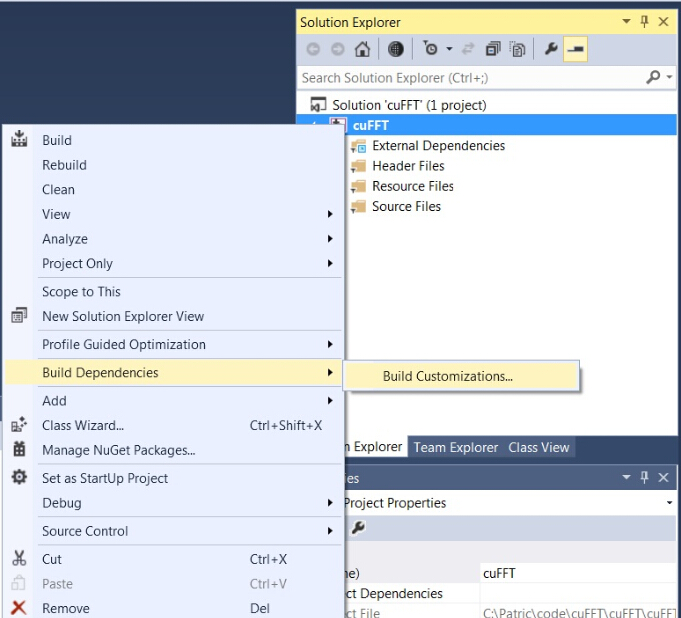
- (right click on project) -> Build dependecies -> Build Customizations -> set check on CUDA 9.1 or what version you have - for example as here: http://devblogs.nvidia.com/parallelforall/wp-content/uploads/2015/01/VS2013-R-5.jpg
- add to project all .c & .cu files from \src
- (right click on project) -> properties -> Linker -> General -> Additional Library Directories, put here:
C:\opencv_3.0\opencv\build\x64\vc14\lib;$(CUDA_PATH)lib\$(PlatformName);$(cudnn)\lib\x64;%(AdditionalLibraryDirectories)
- (right click on project) -> properties -> Linker -> Input -> Additional dependecies, put here:
..\..\3rdparty\lib\x64\pthreadVC2.lib;cublas.lib;curand.lib;cudart.lib;cudnn.lib;%(AdditionalDependencies)
- (right click on project) -> properties -> C/C++ -> Preprocessor -> Preprocessor Definitions
OPENCV;_TIMESPEC_DEFINED;_CRT_SECURE_NO_WARNINGS;_CRT_RAND_S;WIN32;NDEBUG;_CONSOLE;_LIB;%(PreprocessorDefinitions)
compile to .exe (X64 & Release) and put .dll-s near with .exe:
pthreadVC2.dll, pthreadGC2.dll from \3rdparty\dll\x64cusolver64_91.dll, curand64_91.dll, cudart64_91.dll, cublas64_91.dll - 91 for CUDA 9.1 or your version, from C:\Program Files\NVIDIA GPU Computing Toolkit\CUDA\v9.1\binopencv_world320.dll and opencv_ffmpeg320_64.dll from C:\opencv_3.0\opencv\build\x64\vc14\binopencv_core2413.dll, opencv_highgui2413.dll and opencv_ffmpeg2413_64.dll from C:\opencv_2.4.13\opencv\build\x64\vc14\binDownload pre-trained weights for the convolutional layers (154 MB): http://pjreddie.com/media/files/darknet53.conv.74 and put to the directory build\darknet\x64
Download The Pascal VOC Data and unpack it to directory build\darknet\x64\data\voc will be created dir build\darknet\x64\data\voc\VOCdevkit\:
2.1 Download file voc_label.py to dir build\darknet\x64\data\voc: http://pjreddie.com/media/files/voc_label.py
Download and install Python for Windows: https://www.python.org/ftp/python/3.5.2/python-3.5.2-amd64.exe
Run command: python build\darknet\x64\data\voc\voc_label.py (to generate files: 2007_test.txt, 2007_train.txt, 2007_val.txt, 2012_train.txt, 2012_val.txt)
Run command: type 2007_train.txt 2007_val.txt 2012_*.txt > train.txt
Set batch=64 and subdivisions=8 in the file yolov3-voc.cfg: link
Start training by using train_voc.cmd or by using the command line:
darknet.exe detector train data/voc.data cfg/yolov3-voc.cfg darknet53.conv.74
(**Note:** To disable Loss-Window use flag -dont_show. If you are using CPU, try darknet_no_gpu.exe instead of darknet.exe.)
If required change pathes in the file build\darknet\x64\data\voc.data
More information about training by the link: http://pjreddie.com/darknet/yolo/#train-voc
Train it first on 1 GPU for like 1000 iterations: darknet.exe detector train data/voc.data cfg/yolov3-voc.cfg darknet53.conv.74
Then stop and by using partially-trained model /backup/yolov3-voc_1000.weights run training with multigpu (up to 4 GPUs): darknet.exe detector train data/voc.data cfg/yolov3-voc.cfg /backup/yolov3-voc_1000.weights -gpus 0,1,2,3
https://groups.google.com/d/msg/darknet/NbJqonJBTSY/Te5PfIpuCAAJ
Training Yolo v3
yolo-obj.cfg with the same content as in yolov3.cfg (or copy yolov3.cfg to yolo-obj.cfg) and:batch=64subdivisions=8classes=80 to your number of objects in each of 3 [yolo]-layers:
filters=255] to filters=(classes + 5)x3 in the 3 [convolutional] before each [yolo] layer
So if classes=1 then should be filters=18. If classes=2 then write filters=21.
(Do not write in the cfg-file: filters=(classes + 5)x3)
(Generally filters depends on the classes, coords and number of masks, i.e. filters=(classes + coords + 1)*<number of mask>, where mask is indices of anchors. If mask is absence, then filters=(classes + coords + 1)*num)
So for example, for 2 objects, your file yolo-obj.cfg should differ from yolov3.cfg in such lines in each of 3 [yolo]-layers:
```
[convolutional]
filters=21
[region]
classes=2
```
Create file obj.names in the directory build\darknet\x64\data\, with objects names - each in new line
Create file obj.data in the directory build\darknet\x64\data\, containing (where classes = number of objects):
classes= 2 train = data/train.txt valid = data/test.txt names = data/obj.names backup = backup/
Put image-files (.jpg) of your objects in the directory build\darknet\x64\data\obj\
You should label each object on images from your dataset. Use this visual GUI-software for marking bounded boxes of objects and generating annotation files for Yolo v2 & v3: https://github.com/AlexeyAB/Yolo_mark
It will create .txt-file for each .jpg-image-file - in the same directory and with the same name, but with .txt-extension, and put to file: object number and object coordinates on this image, for each object in new line: <object-class> <x> <y> <width> <height>
Where:
* <object-class> - integer number of object from 0 to (classes-1)
* <x> <y> <width> <height> - float values relative to width and height of image, it can be equal from (0.0 to 1.0]
* for example: <x> = <absolute_x> / <image_width> or <height> = <absolute_height> / <image_height>
* atention: <x> <y> - are center of rectangle (are not top-left corner)
For example for img1.jpg you will be created img1.txt containing:
1 0.716797 0.395833 0.216406 0.147222 0 0.687109 0.379167 0.255469 0.158333 1 0.420312 0.395833 0.140625 0.166667
train.txt in directory build\darknet\x64\data\, with filenames of your images, each filename in new line, with path relative to darknet.exe, for example containing: data/obj/img1.jpg data/obj/img2.jpg data/obj/img3.jpg
Download pre-trained weights for the convolutional layers (154 MB): https://pjreddie.com/media/files/darknet53.conv.74 and put to the directory build\darknet\x64
Start training by using the command line: darknet.exe detector train data/obj.data yolo-obj.cfg darknet53.conv.74
(file yolo-obj_xxx.weights will be saved to the build\darknet\x64\backup\ for each 100 iterations)
(To disable Loss-Window use darknet.exe detector train data/obj.data yolo-obj.cfg darknet53.conv.74 -dont_show, if you train on computer without monitor like a cloud Amazaon EC2)
After training is complete - get result yolo-obj_final.weights from path build\darknet\x64\backup\
After each 1000 iterations you can stop and later start training from this point. For example, after 2000 iterations you can stop training, and later just copy yolo-obj_2000.weights from build\darknet\x64\backup\ to build\darknet\x64\ and start training using: darknet.exe detector train data/obj.data yolo-obj.cfg yolo-obj_2000.weights
Also you can get result earlier than all 45000 iterations.
Note: If during training you see nan values in some lines then training goes well, but if nan are in all lines then training goes wrong.
Do all the same steps as for the full yolo model as described above. With the exception of:
* Download default weights file for tiny-yolo-voc: http://pjreddie.com/media/files/tiny-yolo-voc.weights
* Get pre-trained weights tiny-yolo-voc.conv.13 using command: darknet.exe partial cfg/tiny-yolo-voc.cfg tiny-yolo-voc.weights tiny-yolo-voc.conv.13 13
* Make your custom model tiny-yolo-obj.cfg based on tiny-yolo-voc.cfg instead of yolo-voc.2.0.cfg
* Start training: darknet.exe detector train data/obj.data tiny-yolo-obj.cfg tiny-yolo-voc.conv.13
For training Yolo based on other models (DenseNet201-Yolo or ResNet50-Yolo), you can download and get pre-trained weights as showed in this file: https://github.com/AlexeyAB/darknet/blob/master/build/darknet/x64/partial.cmd
If you made you custom model that isn't based on other models, then you can train it without pre-trained weights, then will be used random initial weights.
Usually sufficient 2000 iterations for each class(object). But for a more precise definition when you should stop training, use the following manual:
> Region Avg IOU: 0.798363, Class: 0.893232, Obj: 0.700808, No Obj: 0.004567, Avg Recall: 1.000000, count: 8
> Region Avg IOU: 0.800677, Class: 0.892181, Obj: 0.701590, No Obj: 0.004574, Avg Recall: 1.000000, count: 8
>
> 9002: 0.211667, 0.060730 avg, 0.001000 rate, 3.868000 seconds, 576128 images
> Loaded: 0.000000 seconds
When you see that average loss 0.xxxxxx avg no longer decreases at many iterations then you should stop training.
.weights-files from darknet\build\darknet\x64\backup and choose the best of them:For example, you stopped training after 9000 iterations, but the best result can give one of previous weights (7000, 8000, 9000). It can happen due to overfitting. Overfitting - is case when you can detect objects on images from training-dataset, but can't detect ojbects on any others images. You should get weights from Early Stopping Point:

To get weights from Early Stopping Point:
2.1. At first, in your file obj.data you must specify the path to the validation dataset valid = valid.txt (format of valid.txt as in train.txt), and if you haven't validation images, just copy data\train.txt to data\valid.txt.
2.2 If training is stopped after 9000 iterations, to validate some of previous weights use this commands:
(If you use another GitHub repository, then use darknet.exe detector recall... instead of darknet.exe detector map...)
darknet.exe detector map data/obj.data yolo-obj.cfg backup\yolo-obj_7000.weightsdarknet.exe detector map data/obj.data yolo-obj.cfg backup\yolo-obj_8000.weightsdarknet.exe detector map data/obj.data yolo-obj.cfg backup\yolo-obj_9000.weightsAnd comapre last output lines for each weights (7000, 8000, 9000):
Choose weights-file with the highest IoU (intersect of union) and mAP (mean average precision)
For example, bigger IOU gives weights yolo-obj_8000.weights - then use this weights for detection.
Example of custom object detection: darknet.exe detector test data/obj.data yolo-obj.cfg yolo-obj_8000.weights
IoU (intersect of union) - average instersect of union of objects and detections for a certain threshold = 0.24
mAP (mean average precision) - mean value of average precisions for each class, where average precision is average value of 11 points on PR-curve for each possible threshold (each probability of detection) for the same class (Precision-Recall in terms of PascalVOC, where Precision=TP/(TP+FP) and Recall=TP/(TP+FN) ), page-11: http://homepages.inf.ed.ac.uk/ckiw/postscript/ijcv_voc09.pdf
mAP is default metric of precision in the PascalVOC competition, this is the same as AP50 metric in the MS COCO competition.
In terms of Wiki, indicators Precision and Recall have a slightly different meaning than in the PascalVOC competition, but IoU always has the same meaning.

2007_test.txt as described here: https://github.com/AlexeyAB/darknet#how-to-train-pascal-voc-databuild\darknet\x64\data\ then run voc_label_difficult.py to get the file difficult_2007_test.txt# from this line to un-comment it: https://github.com/AlexeyAB/darknet/blob/master/build/darknet/x64/data/voc.data#L4build/darknet/x64/calc_mAP_voc_py.cmd - you will get mAP for yolo-voc.cfg model, mAP = 75.9%build/darknet/x64/calc_mAP.cmd - you will get mAP for yolo-voc.cfg model, mAP = 75.8%(The article specifies the value of mAP = 76.8% for YOLOv2 416×416, page-4 table-3: https://arxiv.org/pdf/1612.08242v1.pdf. We get values lower - perhaps due to the fact that the model was trained on a slightly different source code than the code on which the detection is was done)
tiny-yolo-voc.cfg model, then un-comment line for tiny-yolo-voc.cfg and comment line for yolo-voc.cfg in the .cmd-filereval_voc.py and voc_eval.py instead of reval_voc_py3.py and voc_eval_py3.py from this directory: https://github.com/AlexeyAB/darknet/tree/master/scriptsExample of custom object detection: darknet.exe detector test data/obj.data yolo-obj.cfg yolo-obj_8000.weights
 |
 |
|---|
set flag random=1 in your .cfg-file - it will increase precision by training Yolo for different resolutions: link
increase network resolution in your .cfg-file (height=608, width=608 or any value multiple of 32) - it will increase precision
recalculate anchors for your dataset for width and height from cfg-file:darknet.exe detector calc_anchors data/obj.data -num_of_clusters 9 -width 416 -heigh 416
then set the same 9 anchors in each of 3 [yolo]-layers in your cfg-file
desirable that your training dataset include images with objects at diffrent: scales, rotations, lightings, from different sides
desirable that your training dataset include images with objects (without labels) that you do not want to detect - negative samples
for training with a large number of objects in each image, add the parameter max=200 or higher value in the last layer [region] in your cfg-file
to speedup training (with decreasing detection accuracy) do Fine-Tuning instead of Transfer-Learning, set param stopbackward=1 in one of the penultimate convolutional layers before the 1-st [yolo]-layer, for example here: https://github.com/AlexeyAB/darknet/blob/0039fd26786ab5f71d5af725fc18b3f521e7acfd/cfg/yolov3.cfg#L598
Increase network-resolution by set in your .cfg-file (height=608 and width=608) or (height=832 and width=832) or (any value multiple of 32) - this increases the precision and makes it possible to detect small objects: link
.weights-file already trained for 416x416 resolutionOut of memory occurs then in .cfg-file you should increase subdivisions=16, 32 or 64: linkHere you can find repository with GUI-software for marking bounded boxes of objects and generating annotation files for Yolo v2 & v3: https://github.com/AlexeyAB/Yolo_mark
With example of: train.txt, obj.names, obj.data, yolo-obj.cfg, air1-6.txt, bird1-4.txt for 2 classes of objects (air, bird) and train_obj.cmd with example how to train this image-set with Yolo v2 & v3
Simultaneous detection and classification of 9000 objects:
yolo9000.weights - (186 MB Yolo9000 Model) requires 4 GB GPU-RAM: http://pjreddie.com/media/files/yolo9000.weights
yolo9000.cfg - cfg-file of the Yolo9000, also there are paths to the 9k.tree and coco9k.map https://github.com/AlexeyAB/darknet/blob/617cf313ccb1fe005db3f7d88dec04a04bd97cc2/cfg/yolo9000.cfg#L217-L218
9k.tree - WordTree of 9418 categories - <label> <parent_it>, if parent_id == -1 then this label hasn't parent: https://raw.githubusercontent.com/AlexeyAB/darknet/master/build/darknet/x64/data/9k.treecoco9k.map - map 80 categories from MSCOCO to WordTree 9k.tree: https://raw.githubusercontent.com/AlexeyAB/darknet/master/build/darknet/x64/data/coco9k.mapcombine9k.data - data file, there are paths to: 9k.labels, 9k.names, inet9k.map, (change path to your combine9k.train.list): https://raw.githubusercontent.com/AlexeyAB/darknet/master/build/darknet/x64/data/combine9k.data
9k.labels - 9418 labels of objects: https://raw.githubusercontent.com/AlexeyAB/darknet/master/build/darknet/x64/data/9k.labels9k.names -inet9k.map - map 200 categories from ImageNet to WordTree 9k.tree: https://raw.githubusercontent.com/AlexeyAB/darknet/master/build/darknet/x64/data/inet9k.mapTo compile Yolo as C++ DLL-file yolo_cpp_dll.dll - open in MSVS2015 file build\darknet\yolo_cpp_dll.sln, set x64 and Release, and do the: Build -> Build yolo_cpp_dll
CUDNN;To use Yolo as DLL-file in your C++ console application - open in MSVS2015 file build\darknet\yolo_console_dll.sln, set x64 and Release, and do the: Build -> Build yolo_console_dll
build\darknet\x64\yolo_console_dll.exeyolo-voc.cfg and yolo-voc.weights to the directory build\darknet\ )<obj_id> <left_x> <top_y> <width> <height> <probability>//#define OPENCV in yolo_console_dll.cpp-file: linkyolo_cpp_dll.dll-API: link
```
class Detector {
public:
Detector(std::string cfg_filename, std::string weight_filename, int gpu_id = 0);
~Detector();
std::vector<bbox_t> detect(std::string image_filename, float thresh = 0.2, bool use_mean = false);
std::vector<bbox_t> detect(image_t img, float thresh = 0.2, bool use_mean = false);
static image_t load_image(std::string image_filename);
static void free_image(image_t m);
std::vector<bbox_t> detect(cv::Mat mat, float thresh = 0.2, bool use_mean = false);
};
```